Retiring school devices safely: wiping, releasing and recycling
What the DfE expects when devices leave the school, how to release them from Apple, Google and Microsoft management, NCSC advice on wiping data, and the WEEE rules.
Checked 6 November 2026
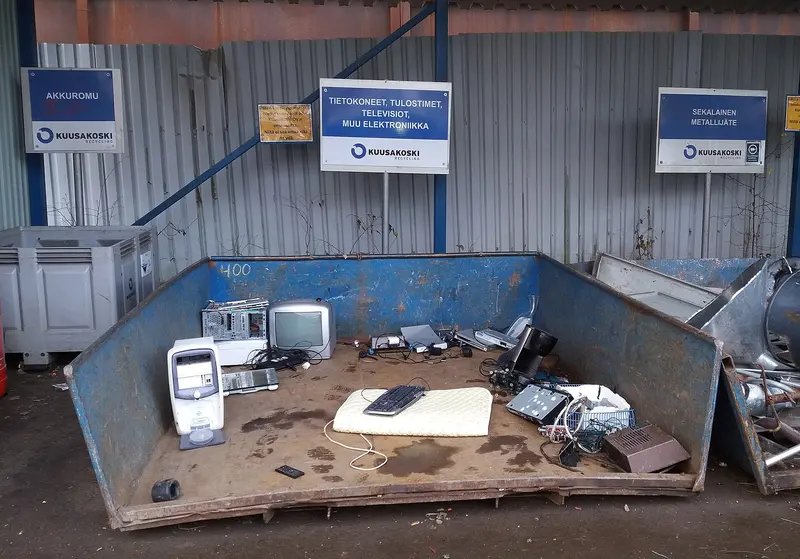
Old iPads, Chromebooks and laptops hold pupil and staff data, and they are still tied to the school’s management services. Getting rid of them safely is partly about data, partly about paperwork and partly about the law on electrical waste.
What the DfE expects
The DfE devices standard says that when disposing of devices, IT support should make sure that:
- the Waste Electrical and Electronic Equipment (WEEE) regulations and data protection requirements are met;
- they have certificates for WEEE, disposal and destruction of data;
- the IT asset register is updated;
- action is taken to prevent security incidents by removing or destroying any data on the devices.
It points to the National Cyber Security Centre’s guidance on secure sanitisation, and says the WEEE regulations are a legal requirement. The GOV.UK guidance on buying ICT for schools adds that you should dispose of hardware safely, which means cleansing all data from it, and get professional advice if you are not sure how.
Step 1: release the device from management
A device that is still enrolled may refuse to set up for its next owner, or may re-enrol into your school automatically.
- Apple: Apple School Manager lets you turn off Activation Lock for devices your organisation owns, and its guide explains how to unassign devices from a device management service. Check both before a device leaves.
- Chromebooks: Google says to deprovision devices you no longer manage, including ones you are reselling, donating or permanently removing, and ones going for repair. You can choose to factory reset at the same time. Google notes that a device that hasn’t been deprovisioned can’t be fully tested and repaired.
- Windows (Intune for Education): Microsoft lists Factory reset (removes the device from management and removes all data and settings) and Delete (unenrols it and removes it from Microsoft Entra ID).
Step 2: make sure the data is gone
The NCSC’s guidance on secure sanitisation and disposal is written for organisations generally, but the principles apply to schools:
- Encrypted devices. For devices with encryption (the NCSC gives BitLocker and FileVault as examples), the maker’s factory reset normally deletes the encryption keys, making the data unreadable. The NCSC says that for most devices this gives a satisfactory level of assurance, but that reset procedures can’t guarantee all data is unreadable. Check the maker’s instructions.
- Unencrypted devices. The NCSC describes overwriting the whole user-accessible storage, checking for remapped or bad sectors, powering off for at least 15 minutes and then reading the contents back to verify.
- When to destroy. Where data may remain, or the device held more sensitive data such as personal information, the NCSC says the media should be physically destroyed to particles of 6mm or less, after erasing it first.
- Don’t forget other kit. The NCSC notes that practically every electronic item contains some storage, and that documents have been recovered from old photocopiers and printers.
The NCSC suggests checking whether disposal companies hold recognised certifications or work to recognised standards, naming CAS-S and ADISA Certification.
Step 3: WEEE and certificates
The Waste Electrical and Electronic Equipment Regulations 2013, as amended (including by amendment regulations in 2025), aim to cut the amount of electrical waste incinerated or sent to landfill by encouraging recovery, reuse and recycling. GOV.UK’s guidance sets out producers’ and distributors’ duties — for example, distributors must offer free take-back of old equipment when you buy like-for-like new products. As the DfE standard says, keep the certificates for WEEE disposal and data destruction with your asset register.
Reuse, donation or recycling
GOV.UK’s buying guidance says that when you dispose of hardware you may want to consider recycling schemes, donating to a charity, selling the items or supplier collection and disposal, and suggests contacting your local council if you are unsure how to recycle hardware.
The DfE’s Get help buying for schools service lists buying options that include disposal. On 6 November 2026 its ICT hardware list included IT, hardware, ITAD & associated services (Procurement Services), which covers secure disposal of old equipment, and Sustainable hardware, asset recycling and data destruction (YPO).
To find IT recycling and IT asset disposal (ITAD) companies near you, our sister site Green ITAD is a UK directory that shows which companies’ licences and certifications have been checked against official registers.
Step 4: close the record
Update the asset register with the disposal date, who took the device, and the certificate references. The DfE governance standard lists “date it was securely disposed of” as one of the register’s fields.
A short checklist
- Back up anything the school needs to keep.
- Release from Apple School Manager, deprovision in Google Admin, or factory reset and delete in Intune.
- Wipe or destroy the storage, following the maker’s instructions and NCSC advice.
- Use a recycler that provides WEEE and data destruction certificates.
- Record everything in the asset register.
Sources
- DfE: Laptops, desktops and tablets standard (updated 16 January 2024) (checked 6 November 2026)
- NCSC: Secure sanitisation and disposal of storage media (checked 6 November 2026)
- GOV.UK: Regulations — Waste Electrical and Electronic Equipment (WEEE) (updated 12 August 2025) (checked 6 November 2026)
- GOV.UK: Buying for schools — ICT and computer hardware (updated 25 February 2025) (checked 6 November 2026)
- Apple: Turn off Activation Lock in Apple School Manager (checked 6 November 2026)
- Google: Repair, repurpose, or retire ChromeOS devices (checked 6 November 2026)
- Microsoft Learn: Manage devices remotely (Intune for Education) (checked 6 November 2026)
- Get help buying for schools: ICT and business systems — laptops, printers and ICT hardware (checked 6 November 2026)
- DfE: Digital leadership and governance core standard (checked 6 November 2026)
- Apple: Assign, reassign, or unassign devices in Apple School Manager (checked 6 November 2026)
Checked 6 November 2026. This guide is general information, not legal, safeguarding or procurement advice. Official guidance changes, so check the sources before you act.