Microsoft Intune for Education: an overview
What Intune for Education manages, the ways to enrol school PCs and iPads, remote actions, shared Windows PCs — and the end of support for Windows 10 and Windows 11 SE.
Checked 6 November 2026
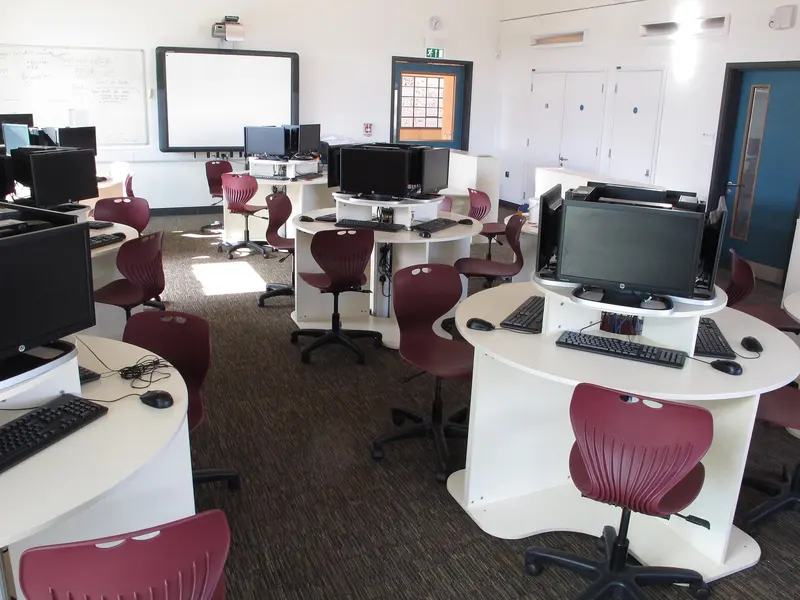
Microsoft describes Intune for Education as “a cloud-based mobile device management (MDM) service for schools”. It is a simplified portal on top of Microsoft Intune, showing only the settings and workflows a school usually needs.
What it manages
According to Microsoft Learn, the Intune for Education portal supports school devices running:
- Windows 11
- Windows 11 SE
- iOS/iPadOS
Microsoft adds that the full Microsoft Intune service supports Android, iOS, macOS and Windows, and that schools also have access to the full Intune admin center, Microsoft Entra ID (for identity), Microsoft School Data Sync and Microsoft 365 Education.
Through the portal, schools can manage devices, configure and assign apps, control how students and teachers access and share information, and apply security requirements. Microsoft also mentions support for the Take a Test app for running online assessments on classroom devices.
Two dates to know
- Windows 10 reached end of support on 14 October 2025, Microsoft says, and no longer receives quality and feature updates. Windows 10 devices can still enrol in Intune, but Microsoft says functionality “isn’t guaranteed and can vary”.
- Windows 11 SE — Microsoft’s overview page says it will not release a feature update after Windows 11 SE version 24H2, and that support for Windows 11 SE, including security fixes, ends in October 2026. Microsoft recommends moving to a device that supports another edition of Windows 11.
The DfE devices standard says laptops and desktops should be replaced or upgraded now if they don’t meet its operating system requirement (enterprise or education-grade operating systems with support and security patches). If you still have Windows 10 or Windows 11 SE devices, those dates belong in your asset register and replacement plan.
Groups and Express Configuration
Intune for Education organises users and devices into groups arranged in a hierarchy, so settings applied to a parent group (for example “All students”) are inherited by its subgroups. Microsoft School Data Sync can create groups for each school and class from roster data; without it, users are added in the Intune or Microsoft 365 admin centres.
Express Configuration is a guided setup that applies Microsoft’s recommended values for the most common school settings to a group, which you can then adjust.
Ways to enrol devices
Microsoft lists several enrolment methods for Intune for Education:
- Set up School PCs app (Windows) — builds a provisioning package on a USB drive that you plug into each PC.
- Apple Automated Device Enrolment (iPad) — through Apple School Manager, so school-owned iPads enrol when first switched on. See Apple School Manager and MDM.
- Enrolment managers (Windows) — trusted staff who can enrol up to 1,000 devices each on the school’s behalf.
- User self-enrolment and automatic enrolment (Windows) — devices join Microsoft Entra ID and enrol when a user signs in with their school account.
Microsoft also offers Windows Autopilot, which turns the manufacturer’s Windows installation into a ready-to-use school device without re-imaging. Microsoft says Autopilot can automatically enrol devices into an MDM such as Intune, which requires a Microsoft Entra ID P1 or P2 subscription for configuration, and that Autopilot Reset can quickly prepare an existing device for a new user.
Remote actions
From the Devices list, Microsoft lists these remote actions:
- Sync — fetch the latest settings and apps.
- Restart and Rename (you can rename groups of devices with a naming template).
- Autopilot Reset — removes user data and user-installed apps but keeps the Windows device enrolled.
- Factory reset — removes the device from management and removes all data and settings.
- Lost — for locating a lost or stolen Windows device, if location services are on.
- Delete — unenrols the device and removes it from Microsoft Entra ID.
Microsoft says remote actions can be run on up to 2,000 devices at a time.
Shared Windows PCs
Intune for Education works with shared devices: Microsoft says students who share a device can have different apps and settings, and see only what is assigned to them. For shared PCs, Windows has a feature called Shared PC. Microsoft describes it as designed to be maintenance-free, with options to delete user profiles automatically at sign-out, by disk space or after a period of inactivity, a Guest option that needs no credentials, and a Kiosk mode that runs one app — Microsoft gives test taking in a school as an example.
One practical point from Microsoft’s Shared PC page: shared devices should be put to sleep rather than shut down, so they can wake up to run maintenance. Microsoft recommends configuring Windows Update to install updates and restart during maintenance hours. That affects how you use charging trolleys overnight, so agree it with whoever looks after the trolleys.
Before you start
- Check which devices are still supported, and when support ends.
- Decide how users will be created (School Data Sync or manual) and how groups will mirror year groups and classes.
- Agree who can enrol devices and who can run remote actions such as factory reset.
- Make sure your filtering and monitoring work on every managed device, on and off site — see the DfE standards and KCSIE.
Microsoft’s own Intune for Education documentation is the place to check current details.
Sources
- Microsoft Learn: What is Intune for Education? (checked 6 November 2026)
- Microsoft Learn: How should I enroll devices? (Intune for Education) (checked 6 November 2026)
- Microsoft Learn: Manage devices remotely (Intune for Education) (checked 6 November 2026)
- Microsoft Learn: Overview of Windows Autopilot (checked 6 November 2026)
- Microsoft Learn: Windows 11 SE overview (checked 6 November 2026)
- Microsoft Learn: Manage multi-user and guest Windows devices with Shared PC (checked 6 November 2026)
- DfE: Laptops, desktops and tablets standard (updated 16 January 2024) (checked 6 November 2026)
Checked 6 November 2026. This guide is general information, not legal, safeguarding or procurement advice. Official guidance changes, so check the sources before you act.