Managing Chromebooks with the Google Admin console
ChromeOS Education Upgrade, enrolling before anyone signs in, forced re-enrolment, the 10-year Auto Update policy, shared Chromebooks and deprovisioning — from Google’s own help pages.
Checked 6 November 2026
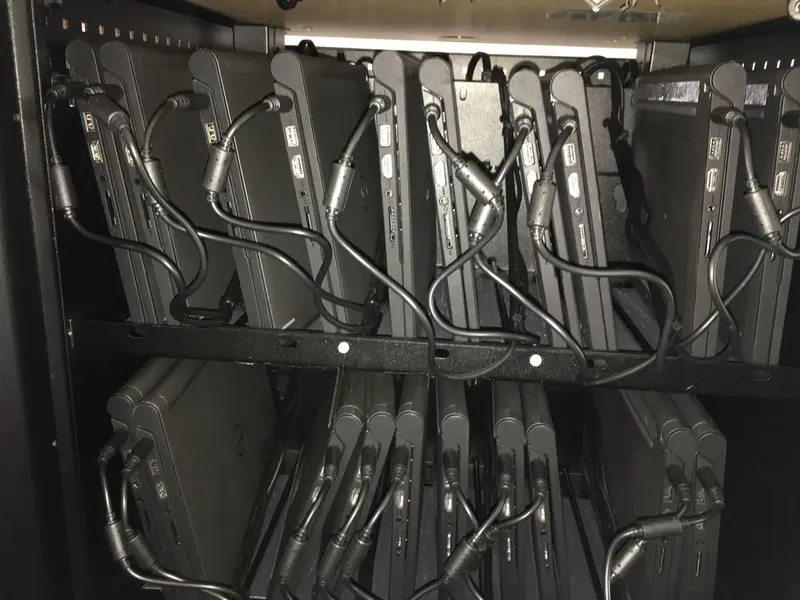
Chromebooks are managed from the Google Admin console — the same console your school may already use for Google Workspace for Education. But a Chromebook only follows the policies you set once it has been enrolled, and enrolment depends on the right upgrade licence.
ChromeOS Education Upgrade
Google’s help pages describe two ways to get the management licence for school Chromebooks:
- Bundled. Some Chromebooks are sold with ChromeOS Education Upgrade included. Google says the upgrade stays with the device for its lifetime, and if the operating system is listed as “ChromeOS with ChromeOS Education Upgrade”, it is a bundled device.
- Standalone. You buy upgrades separately for Chromebooks that didn’t come with one. Google says standalone ChromeOS Education Upgrade is perpetual: each upgrade covers the life of the device it is enrolled to.
Google also notes some limits. A standalone education upgrade can be moved to a replacement device of the same model (for example after a hardware fault) but not to a different model, and not to another organisation’s account. A bundled upgrade can’t be transferred to another device at all. Upgrades are bought through an authorised partner.
Enrol before anyone signs in
This is the rule that catches people out. Google says: “You must enroll devices before anyone signs in to them. If you don’t, you need to wipe the device and restart enrollment.”
Ways to enrol include:
- Zero-touch enrolment for ChromeOS devices, set up with your reseller, so devices enrol during first setup.
- Manual enrolment — at the enrolment screen (or by pressing Ctrl+Alt+E before anyone signs in), an administrator signs in and chooses the upgrade to use.
Google’s enrolment page also describes a setting that lets users enter an asset ID and location during enrolment. If your asset labels are on the devices already (see asset labels), that is a quick way to match each Chromebook to your asset register.
Forced re-enrolment
By default, Google says, a wiped Chromebook automatically re-enrols into your account. That means a factory reset doesn’t free the device from school management, which matters if a Chromebook goes missing. Admins can change this to require re-enrolment with a username and password, or turn it off. Google advises not forcing re-enrolment on devices used in developer mode, and deprovisioning devices you no longer manage.
The Auto Update policy
Google’s Auto Update policy says ChromeOS devices receive 10 years of updates from the platform release date, and it publishes an “automatic updates until” date for each model. Google adds that after a device receives its final automatic update, existing and future policies may not work as intended and technical support won’t be provided.
That date is worth checking before you buy, and again when you plan replacements. The DfE devices standard asks for laptops to have five years of support and security patches when you buy, repurpose or upgrade them, and the DfE cyber security standard asks for end-of-support dates to be recorded in your asset register and your MDM.
Shared Chromebooks
For Chromebooks that move between pupils, Google’s ephemeral mode marks each signed-in profile for deletion when the user signs out, so less is left behind on the device. Google says that with ephemeral mode, users should also have Chrome sync turned on, otherwise changes are lost when they sign out. Ephemeral mode can be set at user level in the Admin console, and Google notes it stops users turning on Linux development mode.
Retiring, repairing and donating
When a Chromebook leaves the school — for repair, replacement, donation, resale or recycling — Google says you should deprovision it so that you’re no longer managing it. Deprovisioning removes your policies, and you can choose to factory reset the device at the same time. Google notes that a device that hasn’t been deprovisioned can’t be fully tested and repaired. If a device is lost or stolen, Google says to disable it instead.
Deprovisioning is one step in a wider disposal process; our guide to retiring school devices safely covers data, WEEE and paperwork.
Kit that helps
- Cases are made for exact models, so check before you buy: rugged cases.
- Classroom sets need somewhere to charge: charging trolleys and cabinets.
- Chromebook styluses only work with matching screens; for example, STAEDTLER says its Noris digital pencils need EMR and won’t work on Pixelbooks. See styluses.
Sources
- Google: Enroll ChromeOS devices (checked 6 November 2026)
- Google: About ChromeOS devices with bundled upgrades (checked 6 November 2026)
- Google: Order options for managing ChromeOS devices (checked 6 November 2026)
- Google: Auto Update policy (checked 6 November 2026)
- Google: Force wiped ChromeOS devices to re-enroll (checked 6 November 2026)
- Google: Ephemeral mode (checked 6 November 2026)
- Google: Repair, repurpose, or retire ChromeOS devices (checked 6 November 2026)
- DfE: Laptops, desktops and tablets standard (updated 16 January 2024) (checked 6 November 2026)
- DfE: Cyber security core standard (updated 16 September 2026) (checked 6 November 2026)
Checked 6 November 2026. This guide is general information, not legal, safeguarding or procurement advice. Official guidance changes, so check the sources before you act.