Asset registers, labels and locks: keeping track of school devices
What the DfE says an asset register should hold, how labels and MDM records work together, and the three kinds of laptop lock slot.
Checked 6 November 2026
MDM tells you a lot about a device while it is switched on and connected. An asset register tells you what the school owns, where it is and what happened to it — including devices that are broken, in a cupboard or gone for recycling. The DfE expects both.
What the DfE says the register should hold
The DfE digital leadership and governance standard says schools should keep a contracts register, an asset register and an information asset register up to date. It describes the asset register as a log of all the physical digital technology in the school, which should record:
- what equipment you have;
- asset numbers;
- serial numbers;
- who it is assigned to;
- where it is in the school;
- when it was purchased;
- how old it is (which may differ from how long you have owned it, if it was bought second-hand);
- when it is due for review, so you can plan a replacement or upgrade;
- the date it was securely disposed of.
The senior leader responsible for digital technology owns the register, and IT support keeps it up to date. The DfE offers a free asset register template through its Plan technology for your school service. The standard says registers should be updated every time something changes and reviewed before the next financial planning cycle.
Two other DfE standards add to this. The devices standard says devices should have labels or tags to keep track of them when you buy them, and be added to the asset register. The cyber security standard says each device’s operating system end-of-support date should be recorded in the asset register and in your MDM.
Making labels and MDM work together
The simplest system is one asset number per device, printed on a durable label and recorded in three places: on the device, in the asset register and in the MDM.
- Use the MDM’s asset fields. For Chromebooks, Google’s enrolment page describes a setting that lets users enter an asset ID and location during enrolment, so the label number goes straight into the Admin console.
- Label the charger and case too. In a shared trolley, matching numbers on the device, charger and case make it obvious when something is in the wrong slot. Some charging stations have numbered slots for the same reason — LocknCharge says its Putnam stations do.
- Keep labels visible. Some education cases are designed for this; Gumdrop says several of its Chromebook cases have transparent top and bottom panels for asset tagging.
- Consider tamper-evident labels. Brother says its TZe security tapes leave a checked pattern behind when removed, so you can see if a label has been peeled off.
- Don’t put personal data on labels. An asset number links to the register; a pupil’s name on the outside of a device doesn’t need to be there.
Browse asset labels and label printers.
Locks and lock slots
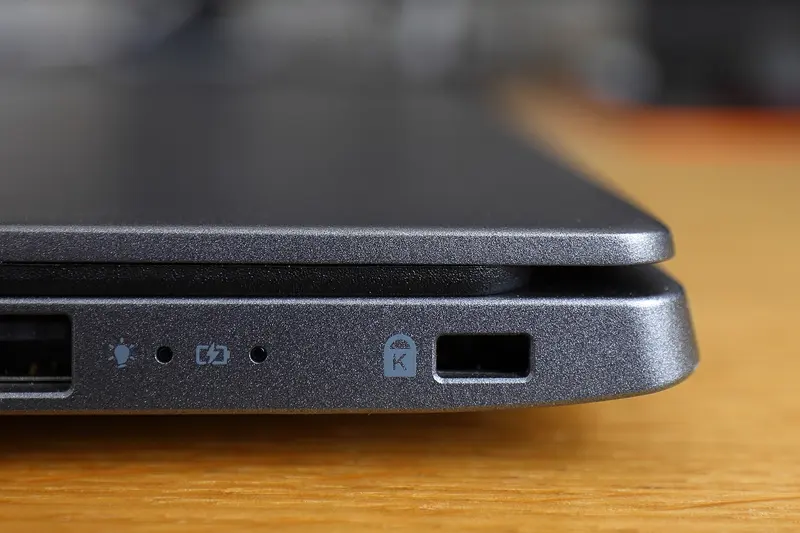
A cable lock ties a laptop or monitor to a desk. The catch is that laptops have different kinds of security slot, and a lock only fits the matching one. Kensington describes three common types — standard, Nano and wedge-shaped — and makes locks for each. Some locks, such as Kensington’s Universal 3-in-1 2.0 combination lock, are designed to fit all three with one tip; Kensington says no interchangeable parts are needed.
Before buying locks:
- check the slot on each device model (the maker’s spec sheet usually says);
- decide between keyed locks (with master-keyed options so IT can open any lock) and combination locks (no keys to lose, but codes to manage);
- remember that iPads and many Chromebooks have no lock slot at all — a lockable trolley or cabinet is the usual answer there.
Browse security locks.
Theft and awareness
The GOV.UK guidance on buying ICT for schools notes that some ICT hardware is a target for thieves, and suggests regularly reviewing security, making pupils and staff aware of your security policies and putting up theft and ICT security notices. MDM helps after the event — for example, Google’s forced re-enrolment brings a wiped Chromebook back under school management, and a lost Windows device can be marked Lost in Intune for Education — but labels, locks and a locked store help before it.
A simple routine
- When devices arrive: label them, record serial and asset numbers, and enrol them in the MDM with the same asset number.
- When a device moves or changes hands: update the register.
- Each term: compare the register with the MDM’s device list and chase anything missing.
- When a device leaves: follow Retiring school devices safely and record the disposal date.
Sources
- DfE: Digital leadership and governance core standard (checked 6 November 2026)
- DfE: Laptops, desktops and tablets standard (updated 16 January 2024) (checked 6 November 2026)
- DfE: Cyber security core standard (updated 16 September 2026) (checked 6 November 2026)
- Google: Enroll ChromeOS devices (checked 6 November 2026)
- LocknCharge: Putnam USB-C PD charging stations (checked 6 November 2026)
- Gumdrop: DropTech for Lenovo 300e Chromebook 2nd Gen (transparent panels for asset tagging) (checked 6 November 2026)
- Brother (US): TZe-SE4 tamper-evident tape (checked 6 November 2026)
- Kensington UK: Universal 3-in-1 2.0 Combination Laptop Lock (checked 6 November 2026)
- GOV.UK: Buying for schools — ICT and computer hardware (updated 25 February 2025) (checked 6 November 2026)
- Google: Force wiped ChromeOS devices to re-enroll (checked 6 November 2026)
- Microsoft Learn: Manage devices remotely (Intune for Education) (checked 6 November 2026)
Checked 6 November 2026. This guide is general information, not legal, safeguarding or procurement advice. Official guidance changes, so check the sources before you act.