Apple School Manager and MDM, explained
How Apple School Manager, a device management service and Automated Device Enrolment fit together for school iPads and Macs — plus Managed Apple Accounts, Shared iPad and Activation Lock.
Checked 6 November 2026
If your school uses iPads or Macs, two names come up straight away: Apple School Manager and MDM. They do different jobs, and you need both.
Apple School Manager is not an MDM
Apple describes Apple School Manager as “a simple web-based portal” that works with your external device management service. It is where the school’s Apple devices, Managed Apple Accounts and app purchases are organised. The day-to-day management — settings, restrictions, app installs, lock and wipe — happens in a separate device management service (MDM) that you link to Apple School Manager.
Apple lists these main features of Apple School Manager:
- Automated Device Enrolment — devices enrol in your MDM automatically during setup, without being touched or prepared first.
- Buying apps and books in volume — you buy content, assign it to devices or users, and can revoke and reassign it. The school keeps ownership of the apps.
- Links to your student information system (SIS) — to create accounts and classes from your rosters.
- Managed Apple Accounts — accounts the school creates, owns and manages, separate from people’s personal Apple Accounts.
The five steps Apple sets out
Apple’s device workflow lists five steps after you sign up:
- Link to Apple or a participating reseller, using your Apple Customer Number or the reseller’s number, so orders appear automatically.
- Link to an external device management service — at least one is needed before you can assign devices.
- Add your devices. Devices bought with those numbers appear automatically. You can also add devices you own using Apple Configurator.
- Assign each device to a device management service, by hand or with a default assignment.
- Enrol the device in that service, which then applies your policies.
Apple’s requirements page says that, for devices to be added automatically, they must have been bought directly from Apple with an enrolled and verified Apple Customer Number, or from a participating Apple Authorised Reseller or authorised carrier linked to your account — and ordered after 1 March 2011. In practice, that makes it worth telling your supplier your organisation details before you place an order.
What Automated Device Enrolment gives you
Apple’s deployment guide says Automated Device Enrolment lets an organisation configure and manage devices “from the moment someone removes a device from its box”. Options include:
- Prevent unenrolment — a supervised device can’t be removed from management by the user.
- Skip Setup Assistant panes so pupils aren’t faced with screens they don’t need.
- Hold the device in Setup Assistant until the MDM has applied critical settings or apps.
- Enforce a minimum operating system version before setup continues.
- Configure as Shared iPad, with the number of users who may share it.
Apple also says iPads with iPadOS 13.1 or later are supervised automatically when they enrol this way. Supervision means the device is owned by the organisation and allows extra control. On a supervised iPad, Settings shows a message that the organisation “can monitor your internet traffic and locate this device” — worth mentioning in your acceptable use policy.
Managed Apple Accounts
Managed Apple Accounts are created and owned by the school. Apple says they can be created by hand, from your SIS, by uploading files, or by connecting to Google Workspace, Microsoft Entra ID or another identity provider. Each account can have a role (for example Administrator, Manager, Instructor or Student) that controls what it can do in Apple School Manager.
Apple says Student role accounts can use a simpler four- or six-digit passcode, while accounts with other roles need strong passwords of at least eight characters. These accounts are also what pupils use to sign in to Shared iPad and apps such as Classroom and Schoolwork.
Shared iPad
Shared iPad lets several pupils use the same iPad with their own sign-in. Apple’s requirements are:
- a device management service and Managed Apple Accounts issued by the school;
- supervised iPads with at least 32GB of storage;
- a supported model — Apple lists all iPad Pro models, iPad (5th generation) or later, iPad Air 2 or later and iPad mini (4th generation) or later.
There is also a guest Temporary Session: anyone can start one without a username or password, and all their data, including browsing history, is deleted when they sign out. Apps that need iCloud may not work in a temporary session. Our guide to shared or 1:1 devices compares the options across platforms.
Activation Lock
Activation Lock ties a device to an Apple Account, which can leave a school with an iPad nobody can set up. Apple School Manager lets you turn off Activation Lock for devices your organisation owns. Apple’s condition is that the device was added to Apple School Manager, and not released from it, before Activation Lock was turned on. This is worth checking before you send devices for repair, resale or recycling — see Retiring school devices safely.
Practical tips
- Keep your Apple Customer Number and reseller numbers somewhere the next IT lead can find them, and record which MDM each device is assigned to.
- Label devices to match your asset register (see asset labels) — the DfE devices standard expects labels or tags and an up-to-date register.
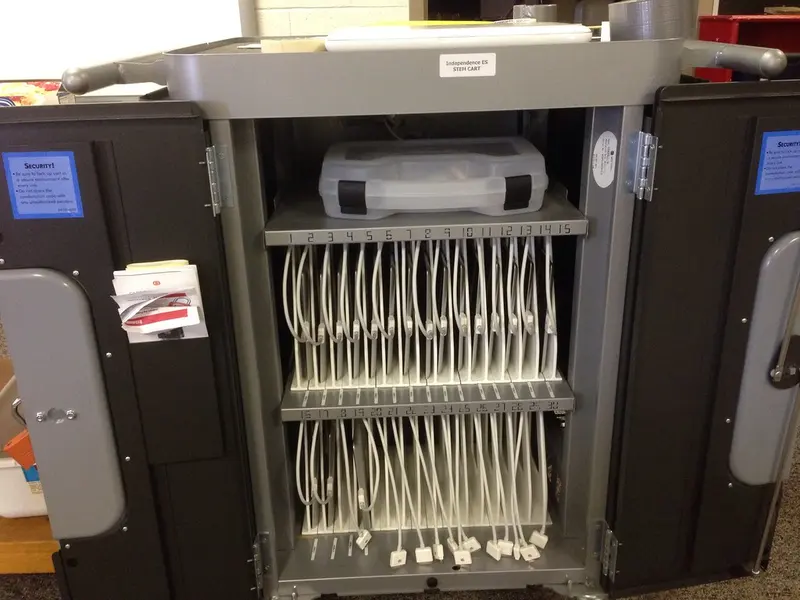
- If you share iPads, plan charging and storage at the same time: charging trolleys and cabinets.
Apple’s own Apple School Manager User Guide is the place to check current details, because Apple updates it often.
Sources
- Apple: Intro to Apple School Manager (checked 6 November 2026)
- Apple: Device workflow in Apple School Manager (checked 6 November 2026)
- Apple: Requirements for Apple School Manager (checked 6 November 2026)
- Apple: Automated Device Enrolment and device management (checked 6 November 2026)
- Apple: About Apple device supervision (checked 6 November 2026)
- Apple: About Managed Apple Accounts in Apple School Manager (checked 6 November 2026)
- Apple: Shared iPad overview (checked 6 November 2026)
- Apple: Turn off Activation Lock in Apple School Manager (checked 6 November 2026)
- DfE: Laptops, desktops and tablets standard (updated 16 January 2024) (checked 6 November 2026)
Checked 6 November 2026. This guide is general information, not legal, safeguarding or procurement advice. Official guidance changes, so check the sources before you act.